Recall Coming soon for Mac

Everything in one calm place.

Each part of Recall, what it does, and what it looks like.

Home Mail Teams Calendar Meeting copilot Memory Chat Code Built-in browser Notes Projects Music Island and quick panel Voice iPhone

Everything that needs you, first.

Replies you owe, with how long each has waited
Chases come back when they are due
Meetings and failed deploys in the same list
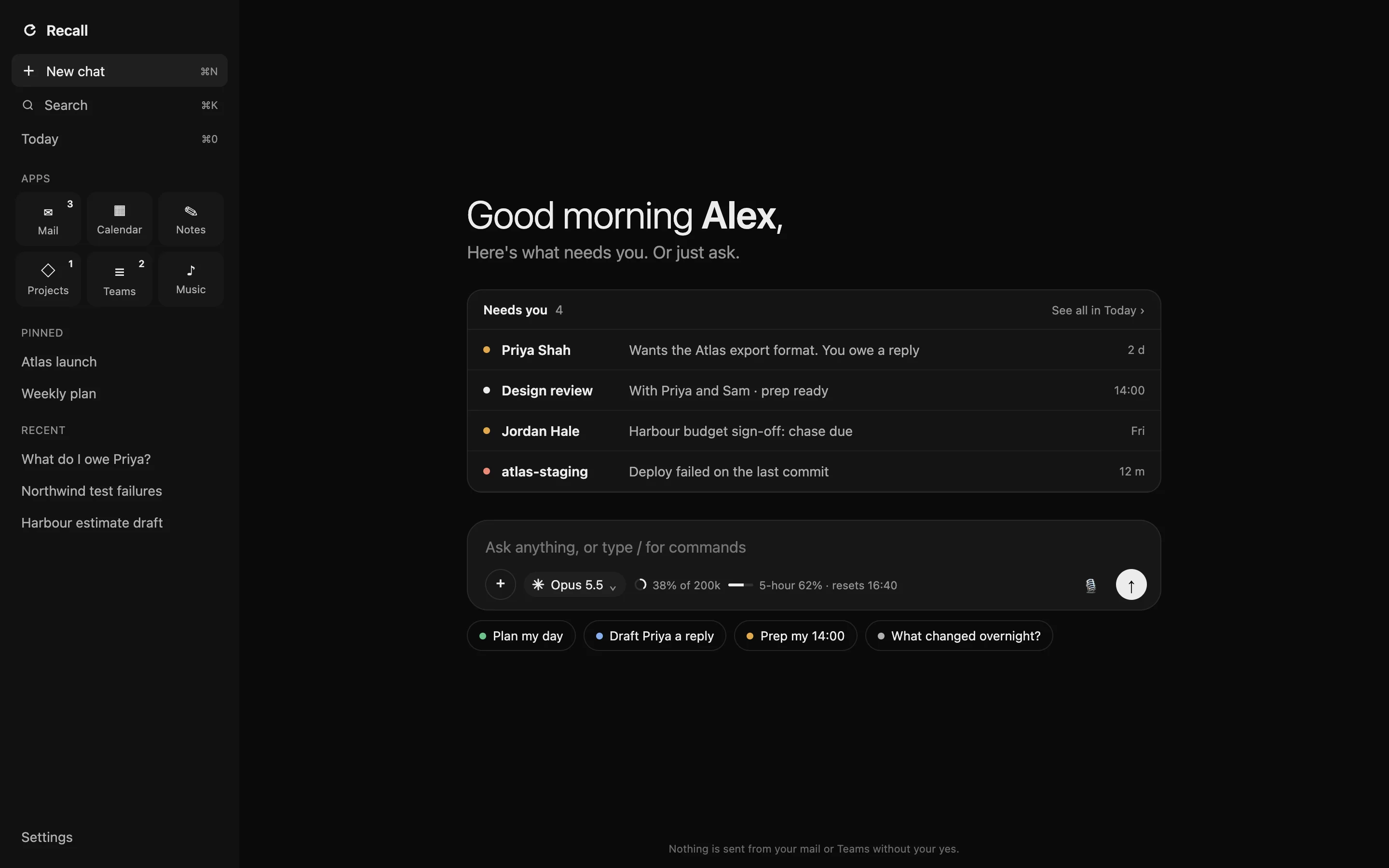
The Recall home screen: a greeting, the Needs you list with four items, the chat box and the sidebar of apps.

Home: the Needs you list.

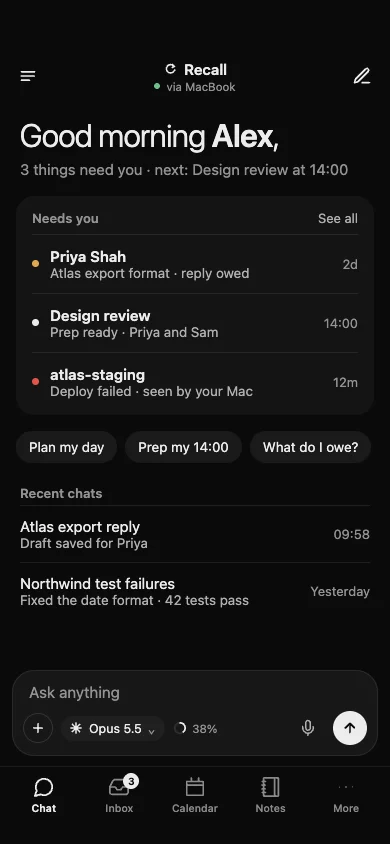
Recall on iPhone: good morning, three things that need you, suggestion chips, the chat box and the tab bar.

Your mail, calmer.

Open an email beside your chat and ask about it
Recall drafts the reply; you save it, edit it or send it
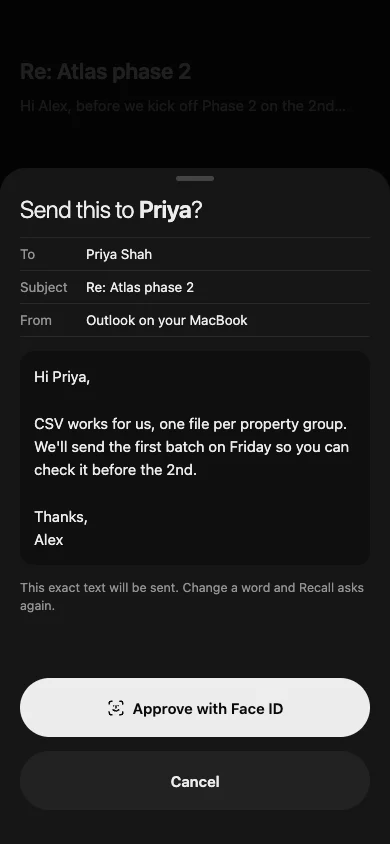
Nothing sends without your yes
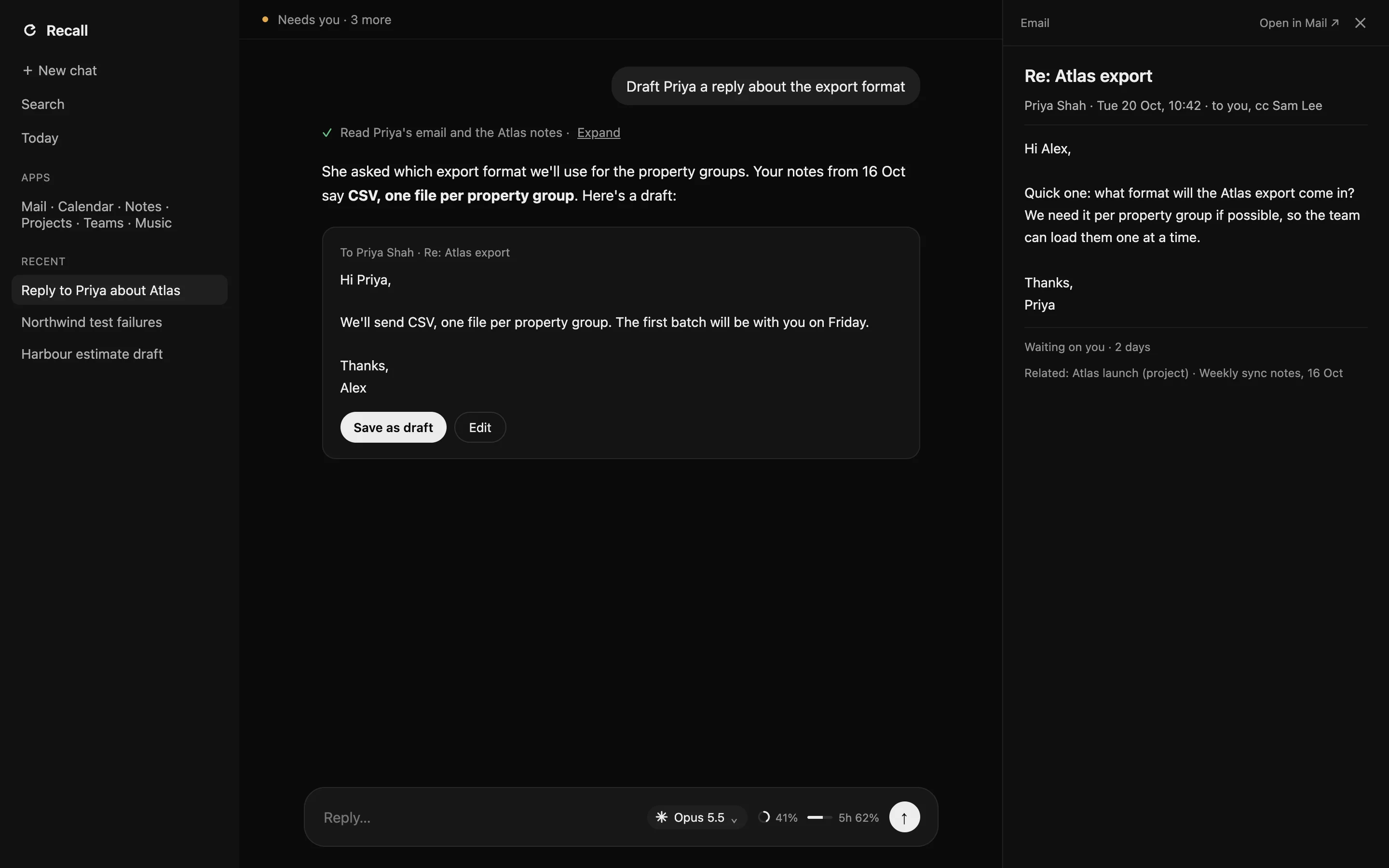
A chat with an email open beside it: Recall has drafted a reply to Priya Shah and offers Save as draft or Edit.

The email on the right, the drafted reply in the chat.
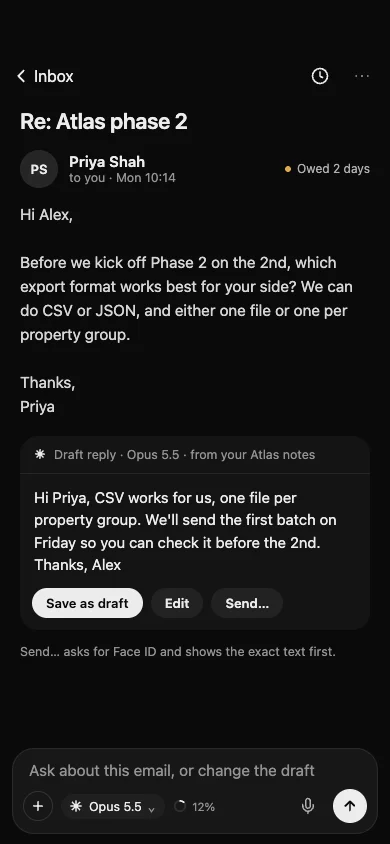
An email on iPhone with a drafted reply, Save as draft, Edit and Send, and a box to ask about the email.

Teams, without the noise.

Chats and channels in the same calm list as mail, with Slack support coming soon
Replies are saved as drafts for you to send
The Recall home screen: a greeting, the Needs you list with four items, the chat box and the sidebar of apps.

Home: Teams in the apps grid.

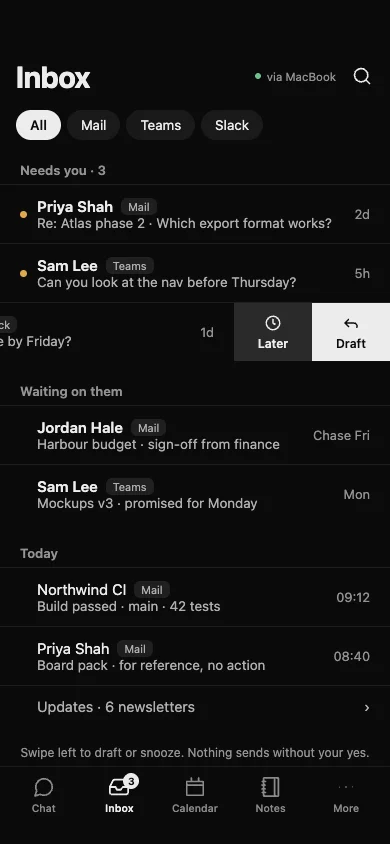
The iPhone inbox: Needs you, Waiting on them and Today, with filters for Mail, Teams and Slack and a swipe to draft or snooze.

Your day, prepared.

Every meeting gets prep
Prep shows who is in it, the emails behind it and what was said last time
The island open for a quick ask, with the model, context and plan meters.
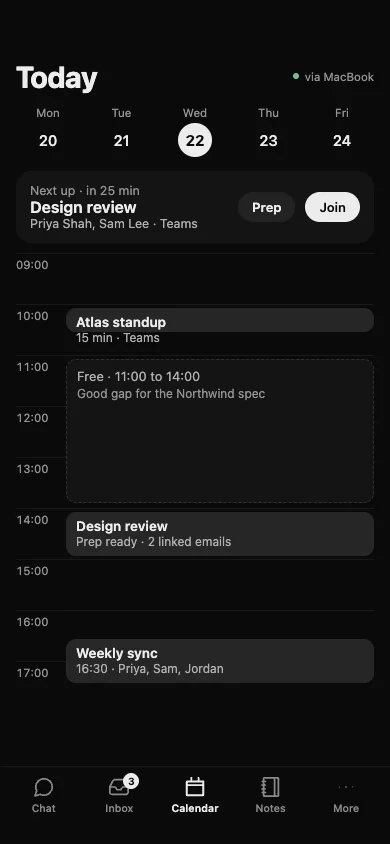
The iPhone calendar: the week, a Next up card with Prep and Join, a free gap and the day’s meetings.

Answers in meetings.

Live notes while you talk
Answers from your own records, with the source and date. Only you see it
The island during a meeting: an answer from your records with its sources.

It remembers.

Facts and promises from every email, chat and meeting
Who owes what, and by when
Every answer shows where it came from
A chat with an email open beside it: Recall has drafted a reply to Priya Shah and offers Save as draft or Edit.

The answer names its source: your notes from 16 Oct.
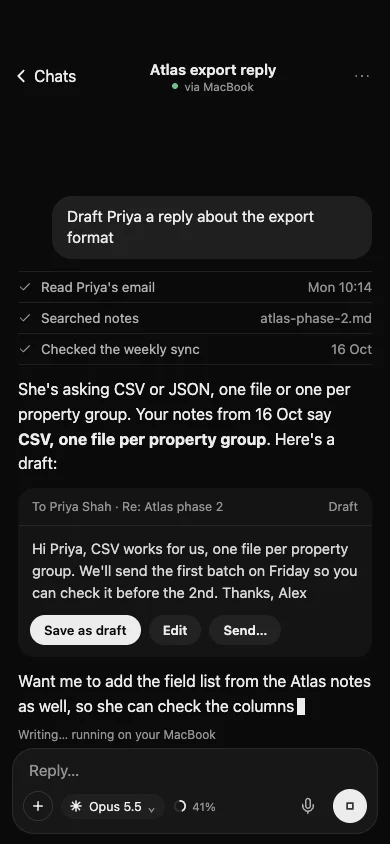
A chat on iPhone: Recall read Priya’s email and your notes and drafted a reply, with Save as draft, Edit and Send.

Chat with your own AI.

Your Claude or ChatGPT subscription, any API key, or a local model
The engine you pick runs chat, triage, your brief, meetings and voice
A meter shows context used and how much of your plan is left
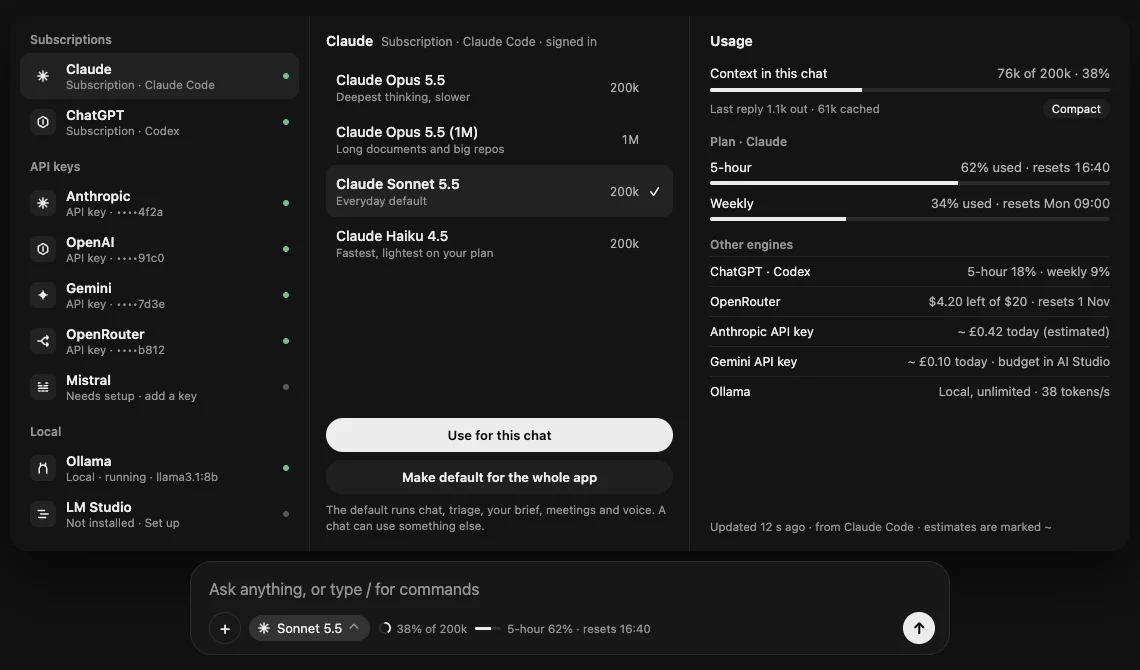
The Recall model picker: subscriptions, API keys and local models with their status, the models for Claude, and a usage panel.
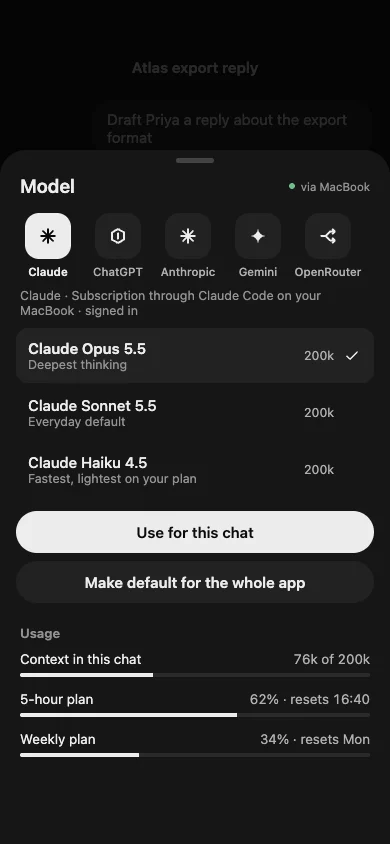
The model picker on iPhone: Claude, ChatGPT, Anthropic, Gemini and OpenRouter, the Claude models and your usage.

It can code.

Open a project and ask in plain words
It edits the files, runs the tests and shows the diff
Keep, review or undo every change
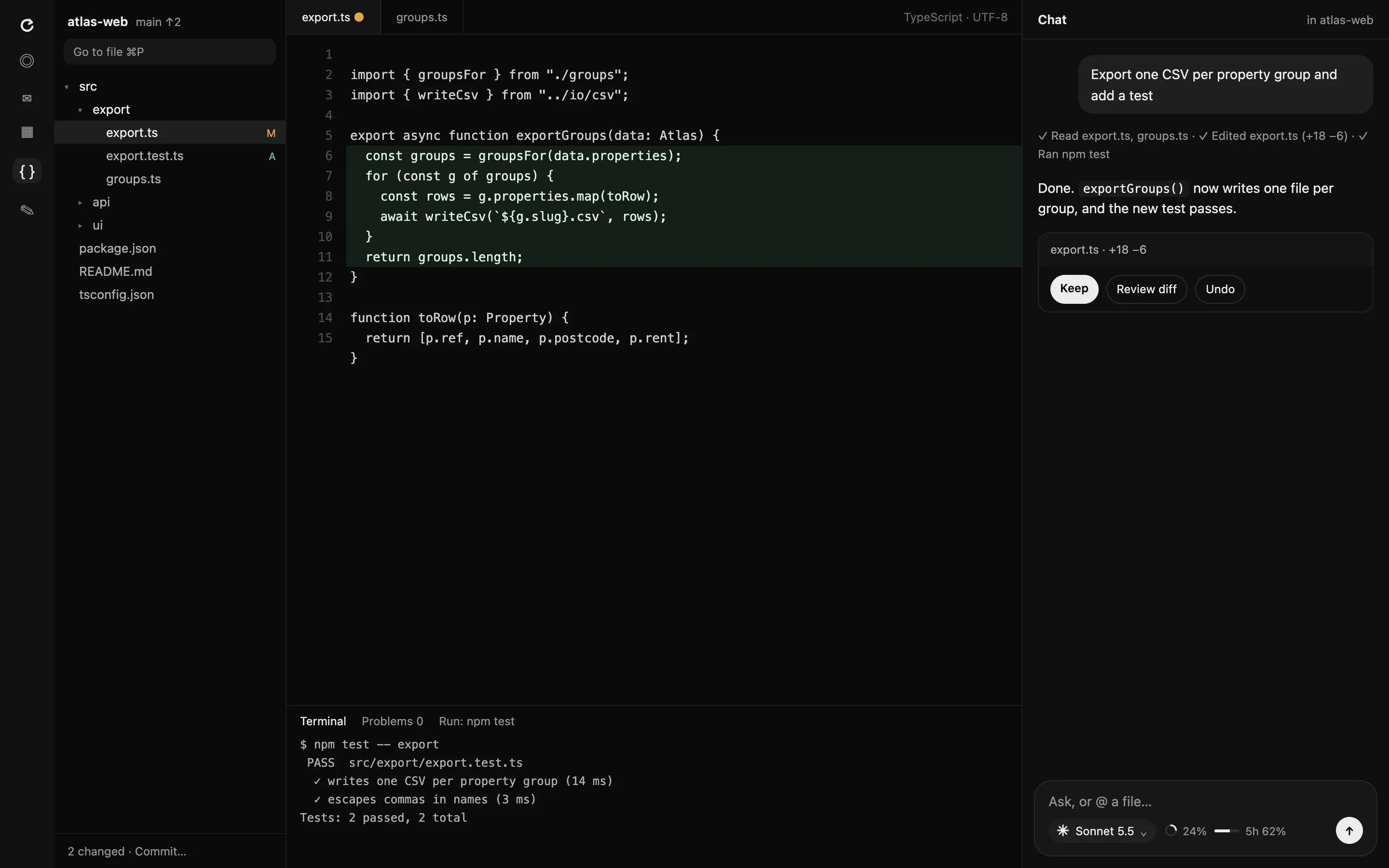
The Recall Code workspace: a file tree, an editor with the new lines highlighted, a terminal showing passing tests, and a chat with Keep, Review diff and Undo.
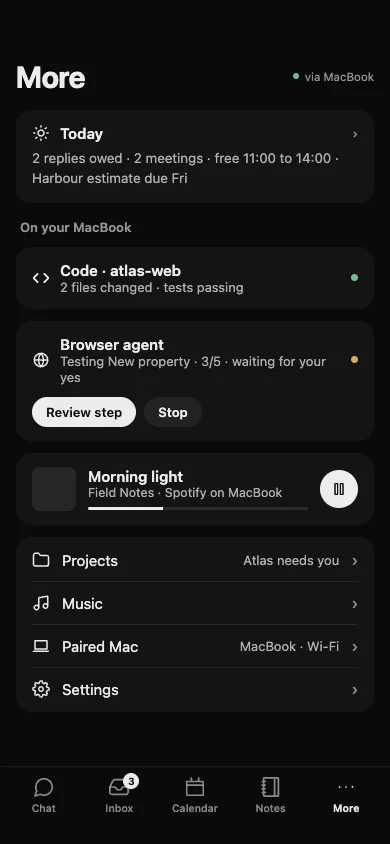
The More tab on iPhone: Today, Code and the browser agent running on your MacBook, music, Projects, the paired Mac and Settings.

Test this app.

Say "test this app" and it clicks through for you
A light built-in browser that sleeps idle tabs to save memory
It asks before anything that saves, pays or sends
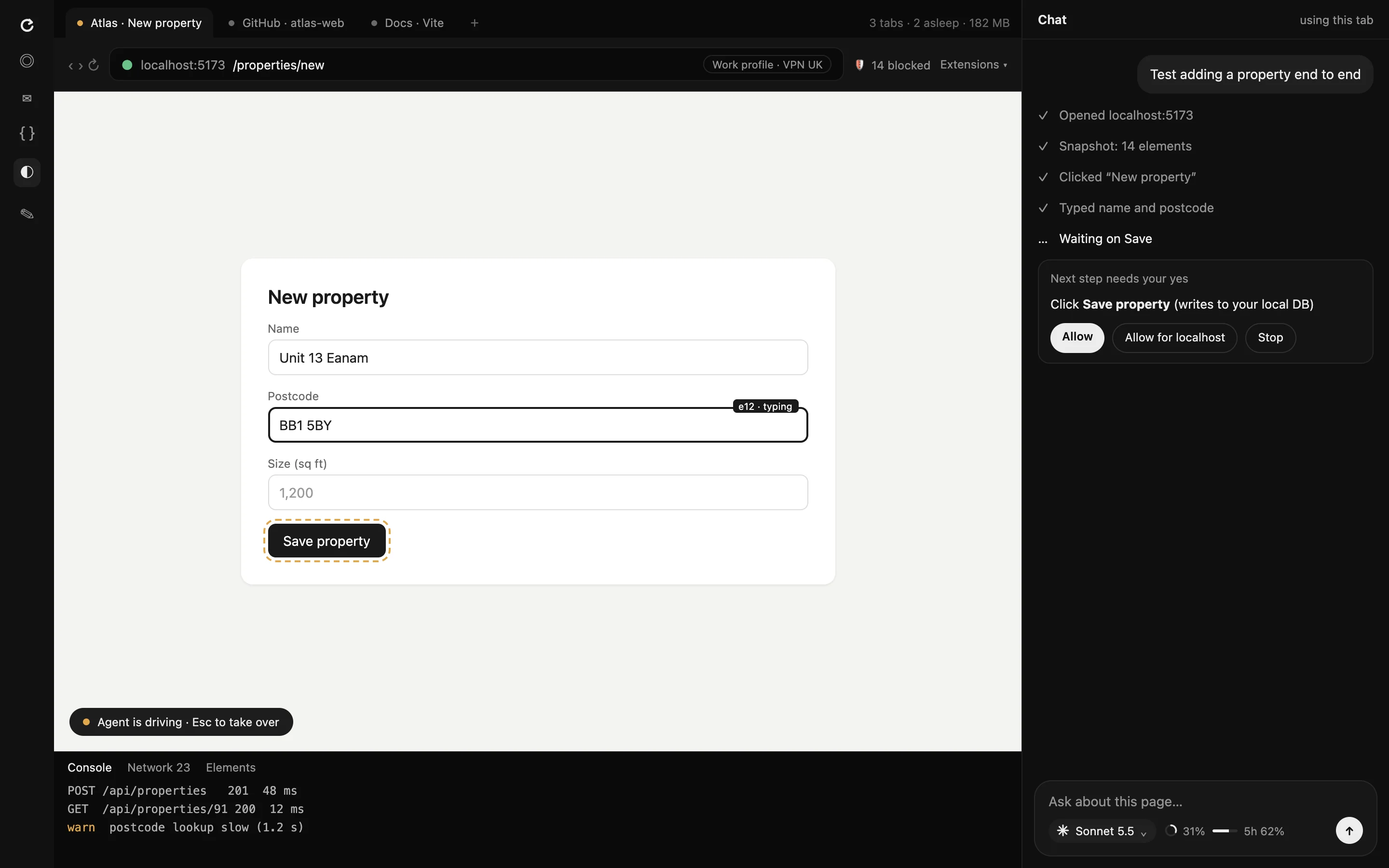
The Recall built-in browser: an agent filling in a form, its steps listed in the chat, and a request for your yes before it saves.
The More tab on iPhone: Today, Code and the browser agent running on your MacBook, music, Projects, the paired Mac and Settings.

Notes, as plain files.

Every note is a markdown file on your Mac
Recall reads them as part of its memory
The Recall home screen: a greeting, the Needs you list with four items, the chat box and the sidebar of apps.

Home: Notes in the apps grid.

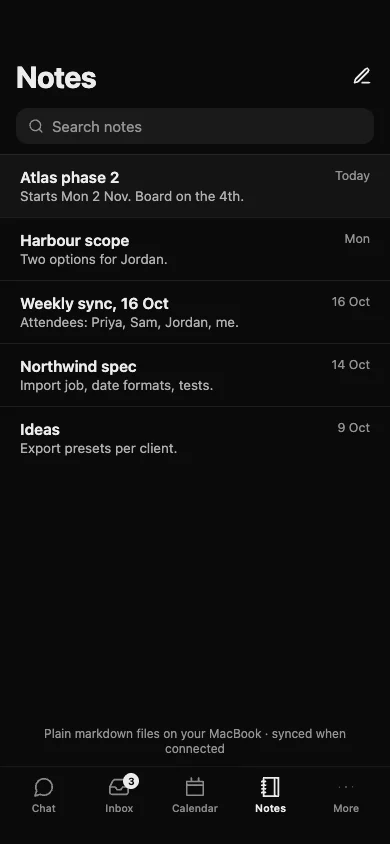
Notes on iPhone: a searchable list of plain markdown files kept on your MacBook.

Projects at a glance.

Failed deploys show up in Needs you
Deploy status, without leaving Recall
The Recall home screen: a greeting, the Needs you list with four items, the chat box and the sidebar of apps.

Home: Projects in the apps grid, and a failed deploy in Needs you.

The More tab on iPhone: Today, Code and the browser agent running on your MacBook, music, Projects, the paired Mac and Settings.

Music, in the app.

Spotify plays right inside Recall
Apple Music and other players supported
The Recall home screen: a greeting, the Needs you list with four items, the chat box and the sidebar of apps.

Home: Music in the apps grid.

The More tab on iPhone: Today, Code and the browser agent running on your MacBook, music, Projects, the paired Mac and Settings.

Always one key away.

Floats at the top of your screen and shows what is running, no notch needed
Open it from the menu bar, or turn on ⌥Space in Settings to ask from anywhere
Reply cards appear when someone is waiting on you
The island, idle: the time, your next meeting and how many things need you.
The island open for a quick ask, with the model, context and plan meters.
The island during a meeting: an answer from your records with its sources.
The island while an agent runs: progress, the current step and a Stop button.
The island showing a reply owed to Priya Shah, with Draft and Later.

Just say "Hey Recall".

Hold to talk on Mac and iPhone
Speech is recognised on your Mac when it supports on-device recognition
The Recall home screen: a greeting, the Needs you list with four items, the chat box and the sidebar of apps.

The chat box, with a microphone button.

Recall, in your pocket.

Your brief, chats and approvals on the go
Approve sends with Face ID
Talks straight to your Mac, no cloud in between
Recall on iPhone: good morning, three things that need you, suggestion chips, the chat box and the tab bar.
The iPhone inbox: Needs you, Waiting on them and Today, with filters for Mail, Teams and Slack and a swipe to draft or snooze.
The send approval on iPhone: the exact email text, To, Subject and From, and an Approve with Face ID button.

Start the day ahead.

Coming soon for MacSee the iPhone app